Color Picker from Image — HEX, RGB & HSL
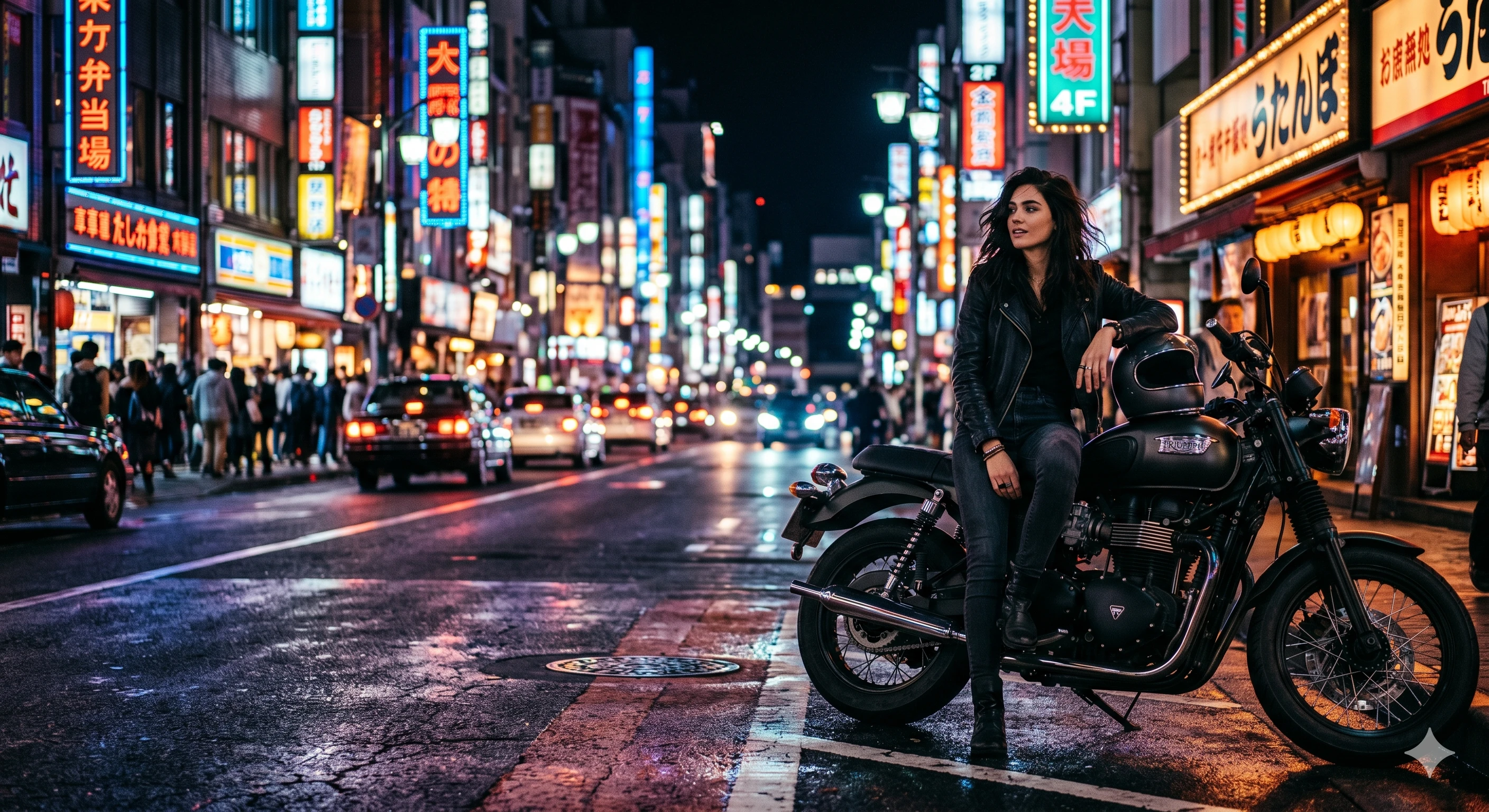
Hover over the image to pick any pixel — HEX, RGB and HSL update live. Bulk-extract the palette below. Everything runs in your browser.
How it works
- 1Upload
Drop a photo or pick a file. Decoding and analysis run locally in your browser.
- 2Analyze
Pixels are grouped with k‑means clustering inside a Web Worker — no server, no upload.
- 3Copy
Copy a HEX, export all colors as CSS variables, or download the palette as PNG.
This tool processes on your device; your file is not uploaded for processing.
About
Pick a color from any image with pixel-perfect accuracy, extract its full palette, convert between HEX, RGB and HSL, and even sample colors directly from anything else on your screen — all inside a single page that runs entirely in your browser. The tool ships with a sample image preloaded so the experience is interactive on first visit; drop your own JPG, PNG, WEBP or AVIF (up to 20 MB) at any time and the picker, magnifier and palette extractor switch over to it instantly. Nothing is uploaded, no server processes your file, and no telemetry tracks the contents of what you sample.
Hovering the image surfaces a 9×9 magnifier near the cursor, with the centre cell outlined in red — that is the pixel currently sampled, expressed as an exact HEX code on the right. Clicking pins the colour so you can edit and copy it without losing it; clicking somewhere else repins. The magnifier reads from a high-resolution offscreen copy of the image (up to 1600 px on the longest edge) so the picked colour matches what you see on screen rather than a downsampled approximation. For designers reverse-engineering a brand palette from a photo, this single feature replaces an entire round-trip through Photoshop's eyedropper.
On the right of the image, the picked colour is shown as two swatches (the larger one is the pinned colour, the smaller one is the live hover sample) and three text inputs — HEX, RGB and HSL. The inputs are fully editable, which makes the panel a complete colour-format converter on top of being a picker. Type a HEX code and the RGB and HSL values update; type an RGB triplet and HEX/HSL follow; type an HSL value and the rest catch up. Each row has a one-click copy button, and the formatted output matches the conventions designers actually use: full uppercase HEX, rgba()-style RGB notation, and comma-separated HSL.
Below the picker, the Color Palette strip auto-extracts the 2 to 12 most representative colours from the image using k-means clustering inside a Web Worker. The clustering runs on a downscaled copy (200 px on the longest edge) for speed, but the result is statistically faithful to the full-resolution image because k-means converges on the same cluster centres regardless of how dense the input is. You can change the palette size with the +/− buttons and the analysis re-runs in milliseconds. Click a swatch to set it as the picked colour, double-click to copy its HEX, or click the download icon to save the palette as a flat 1200×400 PNG suitable for moodboards, slide decks and brand documents.
There is a “View color details” disclosure that expands an inline panel with five tints (each one closer to white than the last) and five shades (each one closer to black) plus a live legibility preview. The tints/shades are computed by linear interpolation between the picked colour and white or black, which is the same method most CSS preprocessors use for `lighten()` and `darken()` functions. Click any tint or shade to set it as the picked colour and the entire workspace updates — it is essentially a one-click way to walk a colour up and down its luminance axis without leaving the page.
The Pick from Screen button uses the browser's native EyeDropper API to sample any colour on your physical screen — a button on a website, a graphic in another tab, a logo in a desktop application that is also visible — and bring it back as the picked colour. The EyeDropper API is supported in Chrome, Edge and Opera (the Chromium family) since 2021; Firefox and Safari do not yet ship it, and the button is automatically disabled with an inline tooltip on those browsers. When supported, the workflow is genuinely magical: click the button, hover anywhere on screen including outside the browser window, click again, and you have an exact HEX of whatever you pointed at.
There are five common reasons people open a tool like this. First, brand-palette reverse-engineering: a designer is given a hero photo and asked to build a UI that matches; pulling the dominant colours from the photo and walking them through tints/shades produces a palette that feels native to the imagery. Second, e-commerce product page styling: marketplace platforms (Trendyol, Hepsiburada, Amazon) reward product photos that align tonally with surrounding chrome, and matching CTA-button colours to the dominant photo tones is a known conversion uplift. Third, social media consistency: Instagram and TikTok feeds that share a coherent palette feel more curated; pulling dominant colours from each post and harmonising new content against them is a common technique among content creators. Fourth, code-side colour conversion: developers regularly need to convert a designer's HEX to RGB for canvas APIs or HSL for theme manipulation; this tool's three-way conversion replaces three separate utilities. Fifth, legacy screenshot mining: when a brand book is missing and the only artefact is an old website screenshot, a colour picker over the image is the fastest way to recover the original palette.
On the technical side, the colour math is the standard one and worth understanding briefly. HEX is a six-character hexadecimal representation of an RGB triplet (the first two characters are red, then green, then blue, each from 00 to FF). RGB is the same triplet expressed as three decimal numbers from 0 to 255. HSL is a different colour space entirely — hue is an angle on the colour wheel from 0° to 360°, saturation is a percentage from grey to fully saturated, and lightness is a percentage from black to white. HSL is more useful than RGB for systematic colour manipulation because changing one channel at a time produces predictable results: tweaking lightness produces tints/shades, tweaking saturation produces vibrancy variations, tweaking hue produces complementary or analogous colours. The tool stores the picked colour internally as an RGB triplet and converts to HEX and HSL on demand, which avoids the rounding errors that compound when you convert through HSL repeatedly.
Privacy is the headline benefit and worth being precise about because most colour-picking tools online are server-based. The image bytes you drop here are read into JavaScript memory using the standard File API, decoded by the browser's native image pipeline, and rendered to a canvas for sampling — none of those steps make a network request. The Network tab in DevTools will show zero outbound requests during sampling and palette extraction. There is no cloud account, no telemetry on the contents of your image, no training data extraction, and no server-side log retention. For agencies handling unreleased brand assets, photographers working on client photos under copyright, or anyone bound by an NDA, this matters: most online colour pickers upload your image to their backend, which is exactly the wrong tool for sensitive material.
A few practical patterns are worth committing to muscle memory. First, when extracting a brand palette from a photo, take 6–8 colours rather than 4 — the extra colours capture the secondary tones that make a palette feel rich rather than flat. Second, for UI work, pick the dominant photo colour, then walk it through the tints/shades panel to generate the supporting palette automatically; this guarantees mathematical consistency across the system. Third, when converting between formats for code, use HEX in CSS (most readable, most cacheable), RGB in canvas APIs and CSS rgba() values where transparency matters, and HSL in CSS variables when you need to mathematically derive variants at runtime. Fourth, save your favourite colours as you work — the saved-colours strip persists across browser sessions via localStorage, which means a working colour palette stays put even if you close the tab.
There are a handful of known limitations to be transparent about. K-means clustering is non-deterministic on the seed step, so running palette extraction twice on the same image can produce variations of a fraction of a percent in coverage and an occasional swap of two adjacent colours; the visible palette stays stable for real-world images. The EyeDropper API only works on browsers that ship it (Chromium-based as of 2026); on Firefox and Safari the button is disabled and Pick from Screen falls back to the upload-and-pick workflow. The magnifier samples from a 1600 px copy of the image, so for very high-resolution scans of art prints (above 4000 px) the picked HEX may differ by 1 unit per channel from a full-resolution sample — imperceptible to the eye but worth knowing for archival work. The tool does not assign colour names (Pantone, RAL, X11) because those naming systems are licensed; if you need a named colour, copy the HEX and look it up in a dedicated naming service.
This tool pairs naturally with the rest of Omnvert's image utilities. The Image Compressor accepts the same formats and is the right next step after pulling a palette from a heavy hero image — drop the image dimensions, re-encode to WebP, and the page weight drops 60–80% without changing the palette. The Background Remover is useful when the picked colour comes from a logo or product photo and you want to reuse the asset on the new palette. The Crop tool reduces image area before extraction, which sharpens the palette by excluding irrelevant background pixels. The Filters tool covers WebP/AVIF format conversion alongside hue/saturation tweaks if you want to recolour the source. The SVG Tools page is the right next step when the palette source is a vector logo. All of these run in the browser with the same privacy guarantees, so an entire colour-design workflow can happen in a single tab without a single byte going to a third-party service.
How it works
- 1Open Color Picker from Image — HEX, RGB & HSL and choose your file or enter the required input.
- 2Adjust the settings and preview the result in your browser.
- 3Run the tool; the data is processed on your device.
- 4Download the output or copy the result when it is ready.