PNG to WEBP converter
Switching a site's PNGs to WEBP usually drops image weight by 30-50% for UI assets and illustrations. WEBP is lossless-capable (so you can preserve perfectly crisp icons) and supports full alpha, so unlike JPEG it's a direct drop-in for transparent PNGs. This tool re-encodes your PNG to WEBP in either lossless or lossy mode — lossless for icons, UI, and screenshots with text; lossy for complex illustrations or photographic PNGs where a quality slider around 85 is usually invisible. Alpha is preserved in both modes. Replace the original PNG in your CDN bundle and ship.
Upload a PNG → get WEBP.
Original
Converted
This tool processes on your device; your file is not uploaded for processing.
About
PNG to WEBP is one of the cleanest format swaps on the modern web. Unlike PNG to JPEG, where transparency disappears and you have to make a flattening decision, WEBP carries a full alpha channel so a transparent PNG drops directly in as a transparent WEBP with nothing lost in the handoff. The size reduction is the headline — UI assets, icons, and illustrations typically come out 30 to 50 percent lighter, sometimes more for files that PNG was particularly bad at compressing — but the more interesting detail is that you can do all of this without giving up the crispness that made you reach for PNG in the first place. The lossless WEBP path keeps every pixel identical to the source.
The lossless versus lossy choice is where this conversion gets interesting. Lossless WEBP is the right pick for anything where you'd be unhappy if a single edge softened: app icons, UI sprites, logos, screenshots that include text, charts, line art, and pixel art. The output is a byte-for-byte preservation of the source, just stored more efficiently than PNG manages. Lossy WEBP, on the other hand, is the right pick for transparent illustrations and photographic-with-alpha images where the file size is dominated by smooth gradients rather than hard edges. At lossy quality 85–90 the visual difference is essentially invisible, but the file shrinks by another large fraction beyond what lossless can do.
Some PNGs are essentially photographs that ended up in the wrong format. A transparent shadow rendered behind a product shot, a screenshot of a photo-heavy page, a film still saved with a faint vignette — these files are huge as PNG because PNG's compression has nothing to offer for that kind of content, but they shrink dramatically as lossy WEBP. The rule of thumb that works most of the time: if the PNG is over a megabyte and the visible content is mostly photographic, lossy WEBP at quality 85 is going to surprise you with how much smaller it gets without anyone noticing on a normal screen.
Alpha behaviour deserves a separate mention because it's the single most common reason people get confused about output. WEBP preserves alpha in both lossless and lossy modes, but the way it stores transparency in lossy mode is a separate channel from the colour data; that means quality settings affect the colour visibility while transparency stays sharp. So a logo with a soft drop shadow can be saved at lossy 80 and the shadow's edge still feels clean, even though the colour values inside the shadow have been compressed. That's a feature unique to WEBP — JPEG can't do anything like it, and PNG can only achieve the same effect with much larger files.
Browser support for WEBP is essentially universal at this point. Chrome, Edge, Firefox, Safari, Opera, and the major mobile browsers all handle it without the picture-element fallback dance that used to be the standard advice. The remaining holdouts are old internal tools, certain email clients (Outlook on Windows in particular), and a long tail of CMS plugins that haven't been updated in years. For public-facing websites, marketing pages, and product galleries, going WEBP-first with no JPEG fallback is now a safe call; for internal portals serving a known mix of clients, it's worth a check before committing.
There's a less-discussed benefit to the conversion that shows up in build pipelines. Lossless WEBP files are typically 25 percent smaller than equivalent PNGs even before considering lossy mode, which means a static-site build that previously shipped 80MB of PNG icons might come down to 60MB without any visible difference at all. CDN bandwidth bills, edge caching efficiency, and mobile-data perceptions of "the site loaded fast" all benefit from that quietly. The trade is that build times get marginally longer because WEBP encoding is slower than PNG's, but the difference is usually a few seconds at the scale most sites operate at.
A few quirks worth knowing. Animated PNG is rare but it exists, and it does not survive this converter — only the first frame ends up in the WEBP output. If the source is an animated APNG that needs to keep its loop, look for a tool that can target animated WEBP directly. Colour profiles are preserved as sRGB across the conversion, which matches what every modern browser assumes, and EXIF / metadata fragments that PNG sometimes carries are dropped on the way out, which is the right default for files heading to the public web.
GitHub README rendering and markdown previews on documentation platforms add a small but specific reason this conversion comes up. GitHub renders WEBP images in README files just fine on the web, but anyone cloning the repo and reading documentation in their local editor — VS Code's built-in markdown preview, IntelliJ's preview pane, the Vim markdown plugins — runs into a long tail of tools that still don't render WEBP inline. Converting README screenshots to WEBP shrinks the repo size meaningfully when there are many of them, but only if everyone reading the repo can see the result. The pragmatic path is keeping the README screenshots as PNG (everyone renders them), while converting documentation site assets — Vercel-deployed docs, Docusaurus sites, MkDocs — to WEBP where the rendering pipeline is known and modern.
For PWA and mobile-app-shell workflows the conversion has a specific kind of payoff. The manifest icons, splash screens, and offline-asset bundles that ship with a progressive web app are typically committed once and rarely revisited; if those PNGs were dropped in by whoever scaffolded the project years ago, they're often the heaviest unnecessary bytes on the entire site. Converting the whole set to lossless WEBP usually shaves 20 to 30 percent off the offline cache size without changing a single visible pixel, which means the install footprint of the PWA on a low-end Android device drops noticeably. Worth running the icon set through this conversion once during a maintenance pass, especially for PWAs aimed at users on slow connections where every kilobyte of the initial cache fetch costs them in real terms.
There's a less obvious case where this conversion is the wrong move and worth flagging: very small PNGs. Sub-five-kilobyte icons used in UI sprites and dense interfaces don't shrink meaningfully as WEBP because the format's per-file overhead becomes proportionally large at that scale. Sometimes the WEBP version comes out larger than the PNG it replaced, which is the opposite of what most people expect and is easy to miss without comparing file sizes manually. The honest answer is that PNG remains the right format for tiny graphics, and the cumulative gain from converting them all to WEBP is approximately zero. Concentrate the effort on the larger files where the savings are real, and leave the icon dust at PNG.
Practically the converter is one drag and one drop. PNG goes in, WEBP comes back, with toggles for lossless versus lossy and a quality slider that only matters in lossy mode. Files are processed in temporary storage, links expire quickly, no signup, no watermark, and no quota counting down in the background. Multiple files run through one after another, which matters when migrating an entire icon set or asset folder rather than handling a single hero image. Most files convert in well under a second; large lossless conversions of multi-megabyte PNGs take slightly longer because the encoder is doing more work to match every pixel, but they still finish in a single pass.
Use cases
- Optimize transparent UI icons for faster page loads.
- Reduce PNG weight while preserving alpha edges.
- Prepare web assets for CMS and static sites.
- Ship modern images with smaller bandwidth costs.
How it works
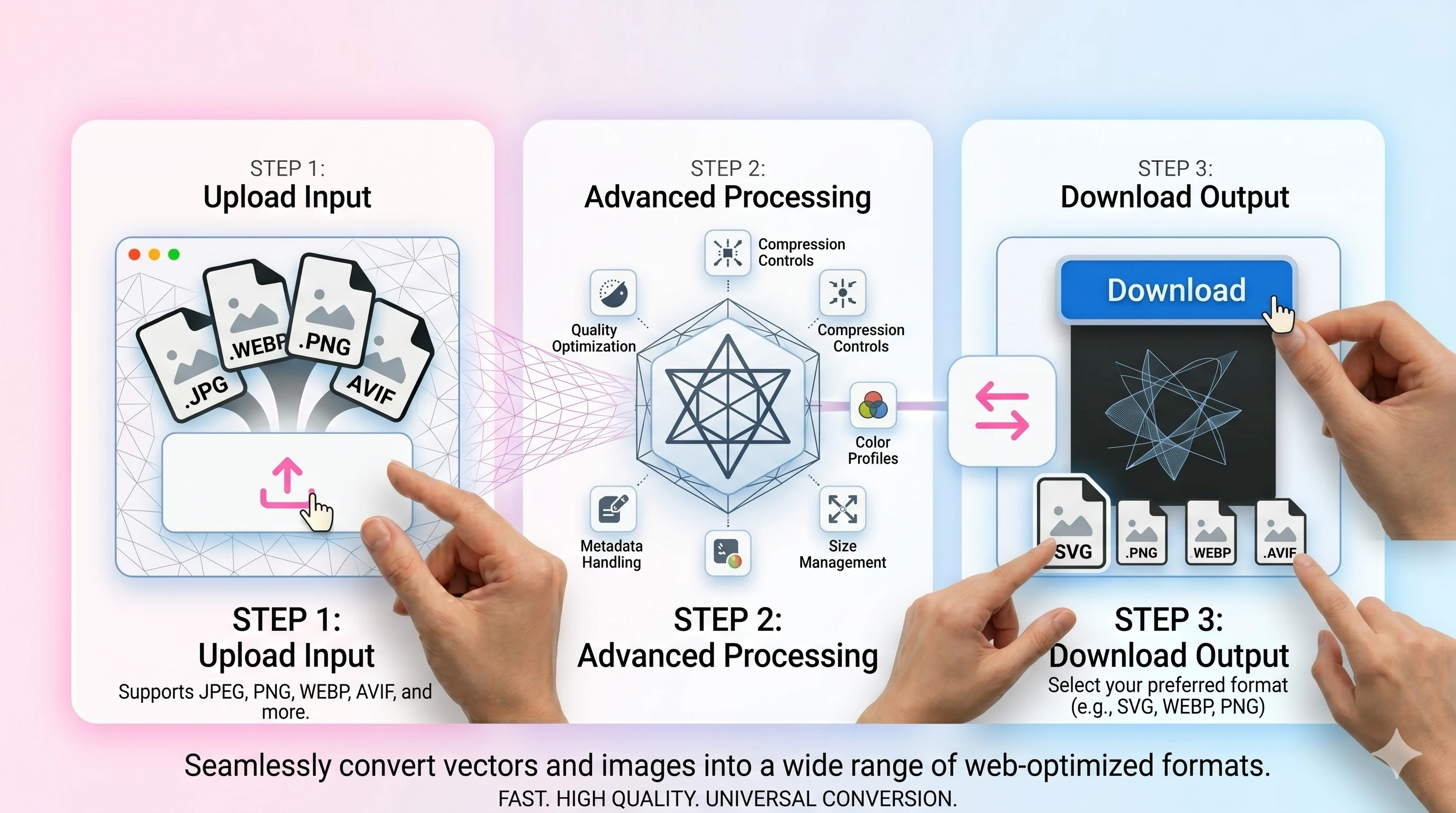
- 1Upload your PNG.
- 2Set WEBP quality and convert.
- 3Download the WEBP output (transparency preserved).
FAQ
Will transparency stay intact?
Yes—WEBP supports alpha, so transparent PNGs can stay transparent in WEBP.
Is WEBP always smaller than PNG?
Often yes, especially for photos or complex images, but results vary by content.
Which quality should I use?
Start around 80–90 and adjust by preview. Higher values keep detail but increase size.
Can I use WEBP everywhere?
Most browsers support it, but some older software may not—keep a PNG/JPEG fallback if needed.