WEBP to JPEG converter
WEBP saves space on the web but it's still the wrong format for email attachments, most print workflows, and any tool that balks at anything non-legacy. Converting to JPEG is a one-step compatibility fix. Pick a background color if the WEBP has transparency (JPEG can't carry alpha), set a quality level — 80-90 looks visually identical to the source for photos — and export. Good for downloading a hero image from a modern site and needing it as a JPEG for a report, or preparing product photos where the upload form on the other end is strict about formats.
Upload a WEBP → get JPEG. JPEG has no transparency; the background fills transparent pixels.
Original
Converted
This tool processes on your device; your file is not uploaded for processing.
About
WEBP arrived as Google's answer to the question of why the web was still shipping JPEGs and PNGs in 2010, and on the open web it has mostly won — Chrome, Edge, Firefox, and Safari have all supported it for years, and most modern CMS installations now save uploads as WEBP by default. The trouble is that the web isn't where most files end their journey. The moment a WEBP needs to leave the browser — into an email, a print queue, a Word document, an older photo viewer, an enterprise CRM that hasn't been touched since 2017 — compatibility breaks down quickly. This converter exists for that exact handoff: take a WEBP that works perfectly inside a browser tab and turn it into a JPEG that works everywhere else.
The most common way people end up needing this conversion is downloading. Save an image off a modern news site or a marketplace listing in Chrome and there's a reasonable chance the file lands on disk as .webp without warning. That's fine if the next step is dropping it into another browser tab; it's a problem the moment it has to be attached to an email, embedded in a slide, or uploaded to a system whose file picker rejects extensions it doesn't recognise. Outlook on Windows still treats .webp as something exotic, several mainstream slide tools refuse to embed it, and anything older than around Office 2019 won't open it at all. JPEG, by contrast, opens absolutely everywhere with no prompt.
Print is a similar story. Most print shops, both the local kind that produces business cards and the larger kind that handles books and signage, run on workflows that were designed before WEBP existed and haven't been updated since. Submit a WEBP and the prepress operator either rejects the file or quietly converts it themselves with whatever defaults their RIP software uses — which can mean a noticeable colour shift or unexpected sharpening. Doing the conversion yourself, with a quality setting you control, leaves nothing to chance and means the colour you saw on screen is the colour that ends up on paper.
Quality is worth taking seriously when going from WEBP to JPEG, because it's a re-encode, not a copy. The original WEBP was already a lossy compression of whatever was upstream, and re-encoding to JPEG layers another lossy step on top. At quality 88–92, the second loss is almost impossible to spot on a normal screen; below about 80, you start seeing the artefacts of two lossy formats interacting, which often shows up as a faint blocky pattern in skies and out-of-focus backgrounds. The default here is set to land in the visually-identical range without bloating the file.
Transparency is the other technical detail to think about up front. WEBP supports an alpha channel, JPEG does not — so any transparent area in the source has to be flattened against a background, and the choice of that background matters for how the result looks on whichever page or document it ends up in. The picker covers the common cases (white, black, custom hex), and getting it right is usually as simple as matching the page colour the JPEG is going to sit on. A logo with a transparent halo flattened to white looks excellent on a white page and conspicuously bad on a coloured one.
Animated WEBP is a small edge case worth flagging. Some WEBPs are short looping animations rather than still images, and JPEG cannot store animation frames at all. When an animated WEBP comes through, only the first frame ends up in the JPEG output — useful for a still preview, less useful if you needed the loop preserved. For animations, exporting frame-by-frame to a sequence or converting to APNG / animated WEBP elsewhere is a better path than trying to force the loop into a single still.
On size, the converted JPEG often turns out a few percent larger than the WEBP source at matched perceived quality, because WEBP simply compresses photographs more efficiently than JPEG. That's not a bug — it's an accurate reflection of why the web moved to WEBP in the first place. The exchange you're making here is going from an efficient modern format to a slightly less efficient legacy format in return for compatibility, and the size penalty is normally a small price for the breadth of places the result will actually open without complaint.
Browser extension landscape is also worth a brief mention because there's a meaningful split in how users actually solve this problem. The 'Save image as PNG' style of extension that became popular for WEBP-to-PNG also covers WEBP-to-JPEG via separate one-click actions; those work well for occasional use but bring their own permission models, update cycles, and occasional unwanted telemetry. Doing the conversion through a web tool keeps the browser clean — no install, no permissions granted, no extension that quietly updates itself with new behaviour months later. For users who only need this conversion every few weeks, the lightweight web path stays simpler and avoids the small-but-real attack surface that browser extensions add to a profile that probably already holds quite a few of them.
There's a quietly persistent iPhone-specific scenario worth flagging. When a WEBP arrives in iMessage or in a third-party messaging app on iOS, saving it to Photos doesn't automatically translate the format — the file lands in the camera roll as .webp and stays there. Some apps that read from Photos to attach an image then refuse the .webp file when it's time to upload, even though the same Photos picker happily showed a thumbnail moments earlier. Converting WEBP to JPEG before saving (or before re-uploading) sidesteps the entire dance, and on iOS specifically the difference between a file that actually attaches to an email and one that silently fails depends on the extension more than people expect. The same applies on the macOS side for older Mail, Notes, and Pages installs that still treat WEBP as something foreign.
Browser save-as behaviour is its own small puzzle worth knowing about. Chrome typically saves the original WEBP bytes as you'd expect; Firefox sometimes offers a context-menu option to save as PNG or JPG depending on the site's response headers, which is occasionally faster than running a separate conversion afterwards. Safari is more conservative and tends to keep whatever the server sent, which means WEBPs from a modern site stay WEBPs on disk. None of those defaults match every workflow, and reaching for an explicit conversion step gives you predictable output regardless of which browser the file came down through. The conversion also strips referer-leaking metadata that some browsers add to saved files, which is a small privacy upside on top of the format change.
Practically, the converter takes a single drop. WEBP in, JPEG out, with a quality slider and a background-colour picker if either default needs changing. Files are processed in temporary storage, links expire quickly, no account or watermark, no per-day quota waiting to bite a few files in. Multiple files can run through one after another, which matters when cleaning up a folder of saved-from-browser images that all came down as WEBP and need to be sent to someone whose email client predates the Obama administration. Most files convert in under a second, and very large originals still finish in a single pass.
Use cases
- Open WEBP images in apps that only support JPG/JPEG.
- Prepare attachments that work in strict email clients.
- Flatten transparent WEBP graphics with a chosen background.
- Export JPGs for printing or legacy CMS uploads.
How it works
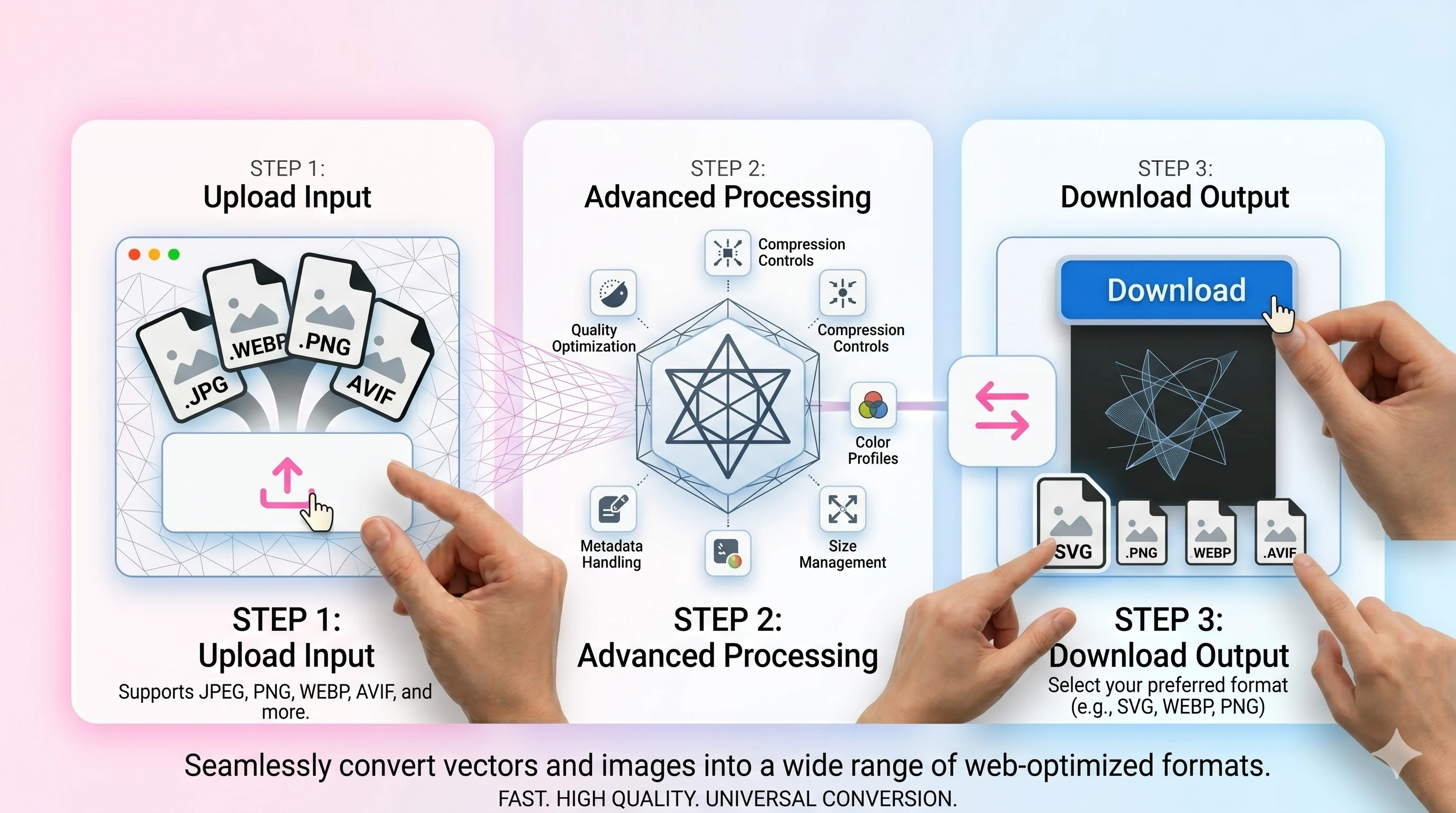
- 1Upload your WEBP file.
- 2Choose background (if needed) and set quality.
- 3Convert and download the JPG/JPEG.
FAQ
What happens to WEBP transparency?
JPEG doesn’t support transparency, so transparent areas are filled with your chosen background color.
How do I keep quality high?
Use 85–92 for photos and higher for graphics. Avoid repeated conversions from already-compressed sources.
Will the file be smaller?
Often yes, but it depends. WEBP can be smaller than JPEG; convert mainly for compatibility.
Is EXIF preserved?
EXIF can be stripped for size/privacy. Keep the original if you need full metadata.